
Reputation Management
Design Your Digital
Success
Crafted Websites and Graphics that Leave a Lasting Impression

Our Story
We are passionate web artisans, committed to creating visually stunning and functional websites that captivate audiences and elevate businesses to new heights.

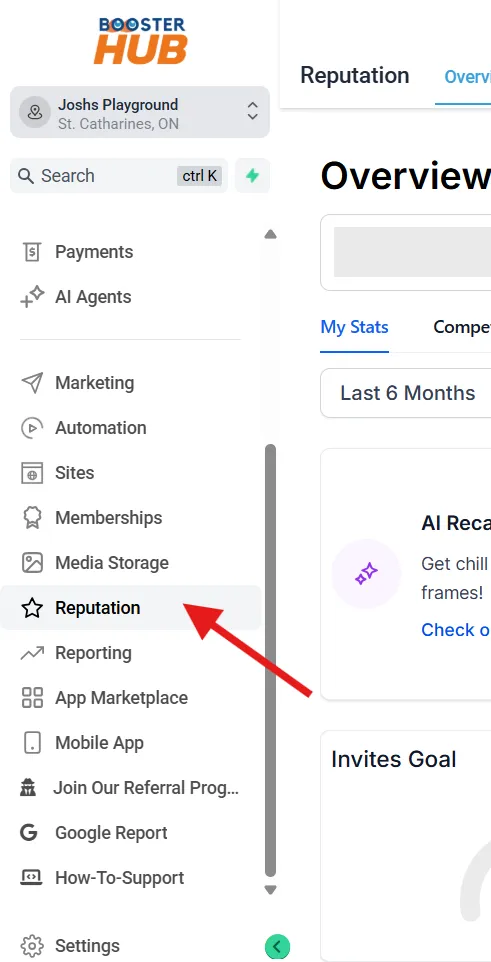
Go to “Reputation”
From the left-hand sidebar, click on “Reputation”.
This tab helps you monitor, request, and respond to reviews from platforms like Google and Facebook.
Connect Review Platforms (First-Time Setup)
If not already connected:
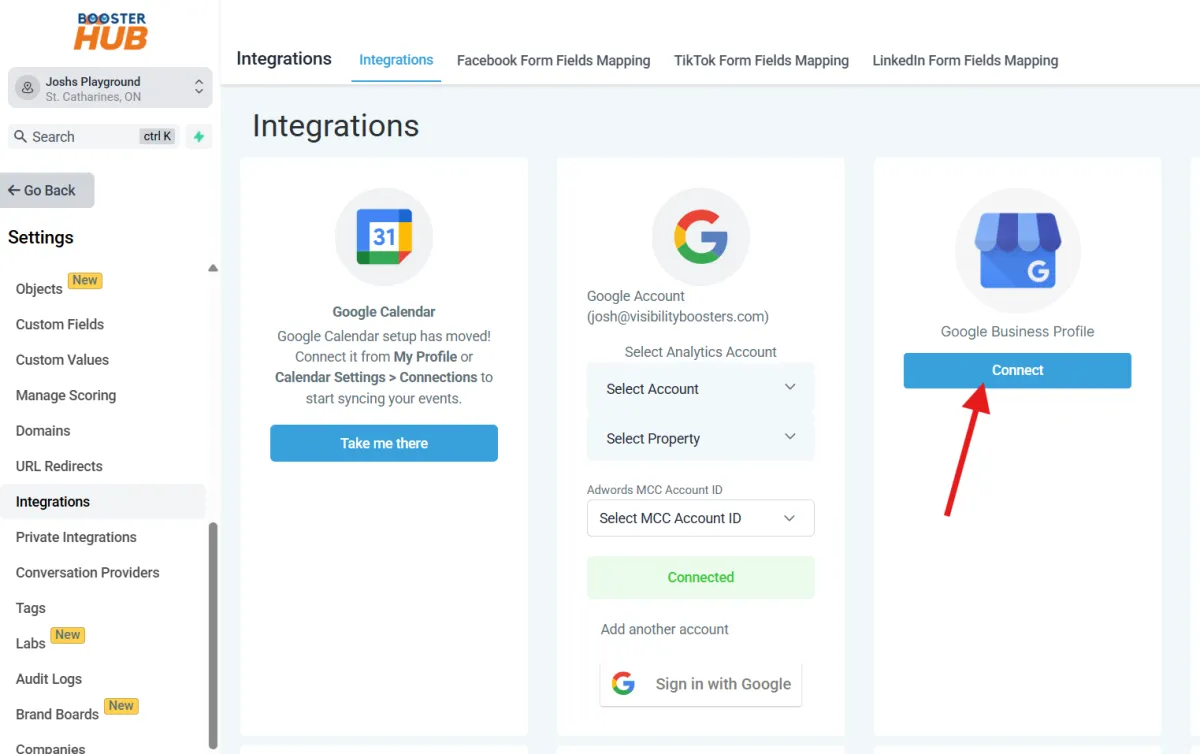
Go to Settings in the left menu
Click Integrations and
Click “Connect" for the GMB profile
Link your Google My Business (GMB) and/or Facebook Page.
This allows GHL to pull in your existing reviews and send requests.
Monitor Existing Reviews
The Dashboard shows:
Total reviews
Average star rating
Reviews by source (Google, FB, etc.)
Recent reviews
You can read and reply to Google reviews directly from here (if connected).

Send Review Requests
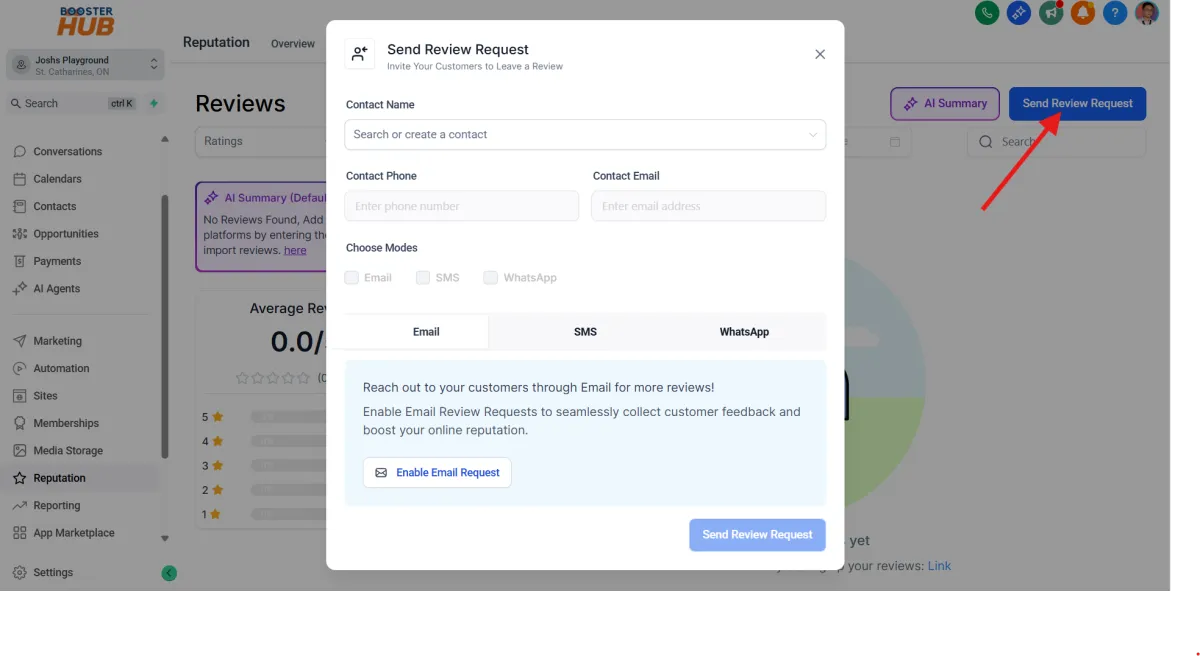
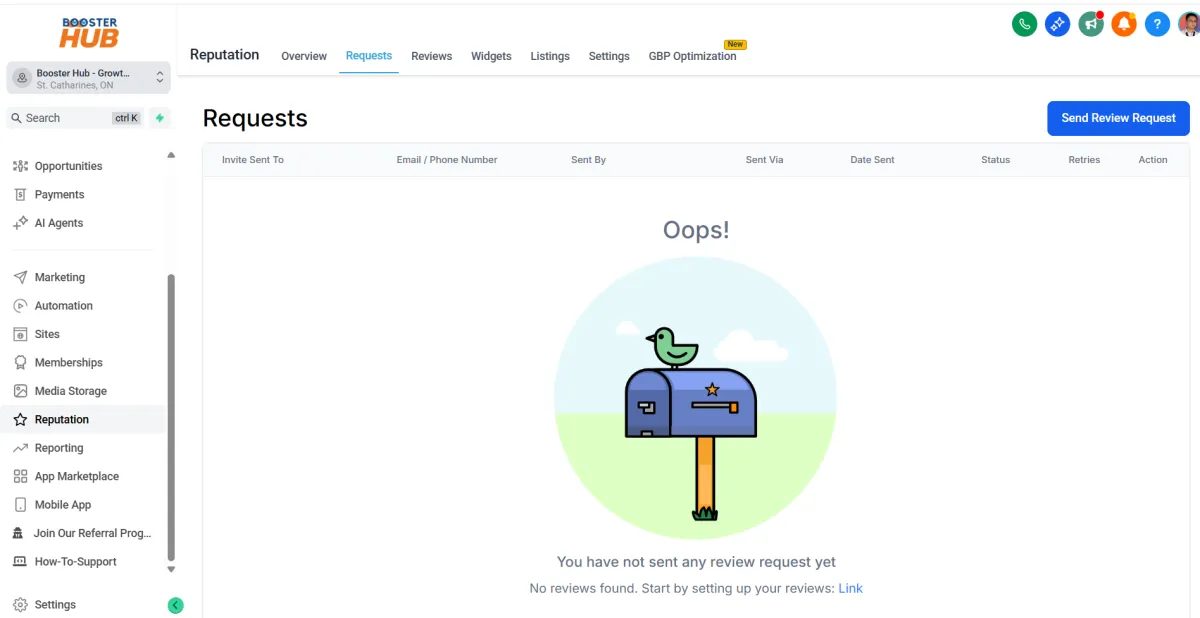
Click “Requests” > “Send Review Request”
Choose how to send:
SMS
Fill out:
Contact name
Phone/email
Optional: use a template message
Click “Send”
Customize Review Request Templates
Customize Review Request Templates
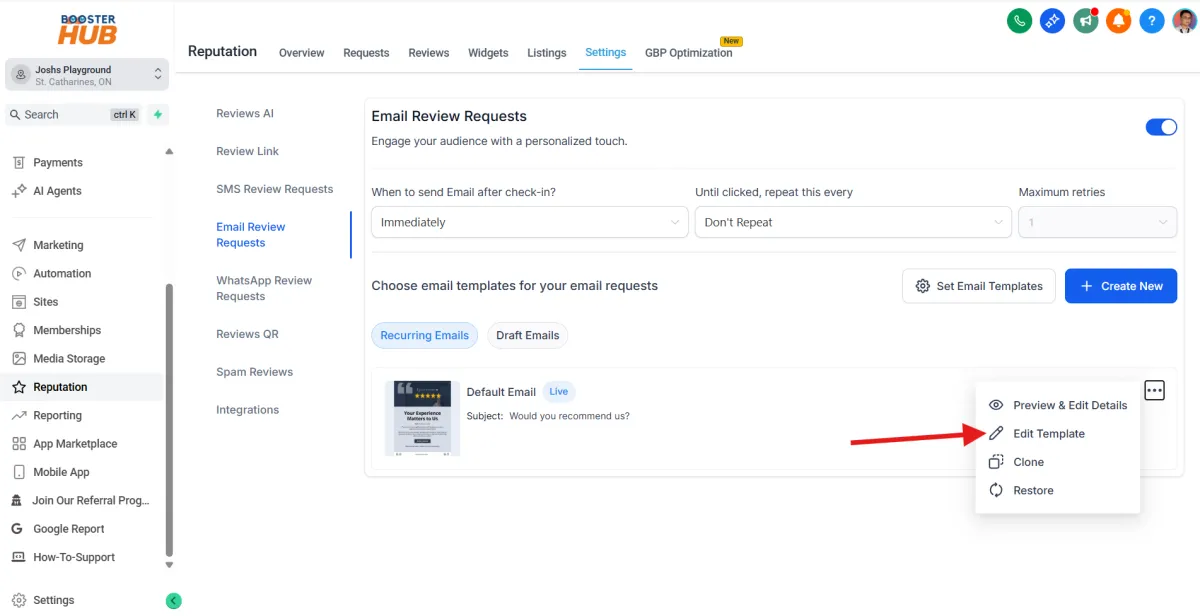
Go to Reputation > Settings
Customize:
Review invitation messages
Thank you messages
SMS or email templates
You can include review links directly to your Google/Facebook page.
Use Automation for Review Requests
Add review requests to your workflows or campaigns.
Example: After an appointment or purchase, auto-send a review request.
Use the “Send Review Request” action in your workflow builder.

View Request Statuses
Under the “Requests” tab, see who:
Was sent a review request
Opened the message
Left a review
Ignored or bounced
Respond to Reviews
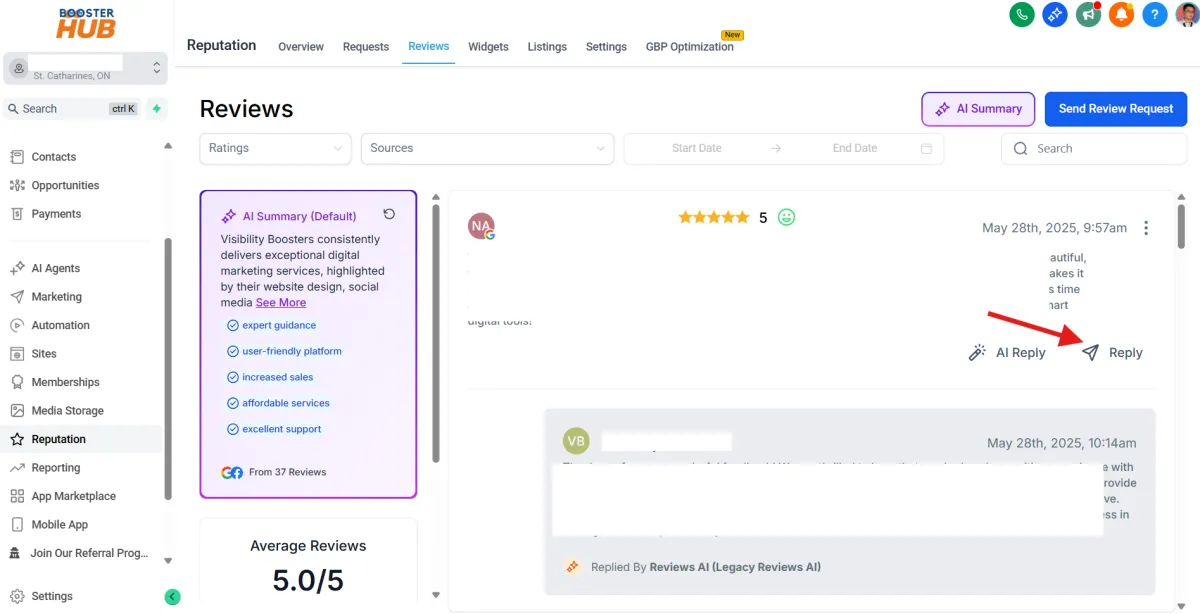
Go to “Reviews” tab.
For Google reviews, click “Reply” below the comment.
Type your response and submit.
For other platforms, GHL may link you to respond directly via the platform.
Manage Settings & Automation
Under Settings > Reputation, you can:
Enable/disable review requests
Turn on/off using the toggle button

Export Reviews for Testimonials
You can export reviews and showcase them on your website, landing pages, or social media.
